Stream Deck Workflows: Streamers, Podcasters, YouTubers
Practical Stream Deck workflows for streamers, podcasters and YouTubers: scene switching, one-tap mic muting, editing macros and safer social posts.
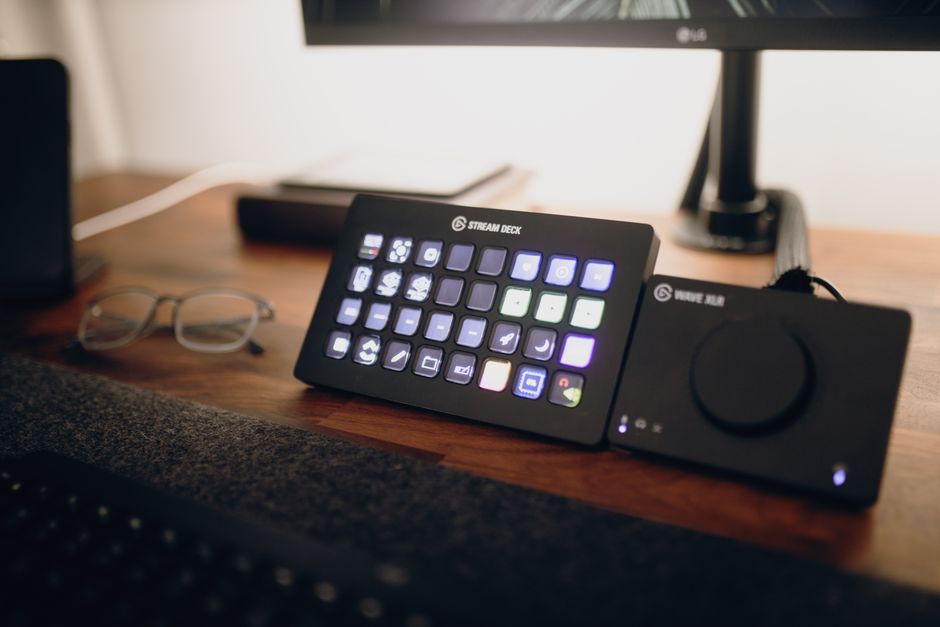
Good Stream Deck workflows turn a control pad full of blank keys into a purpose-built cockpit for your show. A Stream Deck (a programmable control pad from Elgato with a grid of customisable LCD keys) does nothing useful out of the box; its whole value is in how you map your repeated actions onto it. Underneath, almost every action is a small piece of automation built on the same idea as a keyboard macro: one input triggers a defined sequence of commands.
This guide walks through the workflows that matter most for three kinds of creator - streamers, podcasters and video editors - and how to structure them so the right keys appear at the right moment. The hardware in the examples is the 15-key Elgato Stream Deck MK.2, but the same patterns apply to the smaller and larger models.
What is a Stream Deck workflow?
A workflow is simply a group of keys arranged around one job. The Stream Deck app gives you four building blocks to assemble them:
- Keys - each triggers one action: a hotkey, an app launch, a scene change, a typed snippet.
- Folders - a key that opens a nested page of more keys, so a 15-key pad holds far more than 15 actions.
- Multi-actions - one key that fires a sequence in order: switch a scene, play a sting, and post a message in a single press.
- Profiles - a whole key layout you can swap in and out. This is the feature that makes per-app workflows possible.
The setting that ties it all together is a profile's smart auto-switch. Link a profile to an application, and the Stream Deck app loads it automatically whenever that app comes to the foreground. Open OBS Studio (the free, open-source live-streaming and recording app most creators use) and your streaming keys appear; switch to your editor and your macro keys replace them. You build each workflow once, then let the software decide when to show it.
How do you build a scene-switching workflow for streaming?
Scene switching is the workflow most streamers reach for first. A live show usually cycles through a handful of scenes - a Starting Soon holding screen, the main Live layout, a Be Right Back card, and an Ending screen - and fumbling for them in OBS on camera looks amateurish. One labelled key per scene fixes that, and a colour-coded pad tells you at a glance where you are.
Install the OBS plugin
Add the OBS Studio plugin from the Stream Deck app's marketplace so keys can control scenes and sources directly, rather than relying on brittle global hotkeys.
Create a Streaming profile
Make a dedicated profile and add one key per scene: Starting Soon, Live, Just Chatting, Be Right Back, Ending.
Assign each scene and style it
Give each key the OBS Scene action, pick the matching scene, then set a clear icon and a distinct colour so the layout reads instantly.
Build a Go Live multi-action
One key that switches to your Live scene, unmutes your mic and starts recording - so going live is a single deliberate press, not three.
Turn on auto-switch
Set the profile to load automatically when OBS is the active window, so your streaming keys are always ready when you need them.
How should podcasters set up their Stream Deck?
Podcasters rarely switch scenes, so their workflow centres on recording control, sound effects and chapter markers. A recording profile keeps the essentials one tap away without leaving your recorder or editor.
Map a start and stop key to your recorder's transport shortcuts so you never miss the top of an episode. Add a small soundboard for your intro sting, transition and outro, either with the built-in sound action or a dedicated soundboard plugin. A marker key that sends your recorder's add-marker shortcut lets you drop a timestamp the moment something quotable happens, which turns hours of editing into a quick jump between flags. If you record guests, a per-channel mute key keeps cross-talk under control.
If you are wiring up more than audio, our guide to a multi-camera podcast setup with the ATEM Mini Pro covers switching video alongside these audio keys - the switcher at the centre of that rig is covered in our Blackmagic ATEM Mini Pro review, and its macros are exactly what a Stream Deck key can fire - and the complete first podcast kit under £300 is a sensible starting point for the rest of the desk.
What editing macros should YouTubers map?
For a YouTuber, the Stream Deck earns its keep in the editing timeline. Editing is thousands of tiny, repeated commands - cut, delete, nudge, mark - and every one is already a keyboard shortcut in Premiere Pro, DaVinci Resolve or Final Cut Pro. Putting the most-used shortcuts on labelled, colour-coded keys removes the constant hunt for two-handed key combinations.
List your most-used shortcuts
In your editor, note (or reassign) the shortcuts for blade or split, ripple delete, add marker, and zoom to playhead - the four you press most.
Create an Editing profile
Add one key per shortcut using the Hotkey action, which sends the key combination to whatever app is in front.
Colour-code by function
Green for cuts, amber for markers, red for deletes. The colour does the remembering so you do not have to.
Add an export multi-action
If your editor exposes queue or export shortcuts, chain them into one key so rendering a finished cut is a single press.
Auto-switch to your editor
Tie the profile to your editing app so the macro keys appear the moment you start cutting.
How do you automate social posting without getting it wrong?
Social posting is where creators most often overreach. A Stream Deck cannot, on its own, publish to Instagram, TikTok or X - and you should be wary of any setup that claims true one-tap auto-posting to live accounts, because a mis-tap then posts instantly with no review. The reliable patterns keep a human in the loop.
Use a System or Website action to open a pre-filled compose window or your scheduling tool, so the post is queued for you to check and send. For genuine automation, fire a webhook from a Stream Deck key into an automation service such as Make or Zapier, and have that service draft the post into a queue rather than publish it outright. The key becomes a fast way to start a post, not a way to skip the last look before it goes out.
How do you build a one-tap mute and audio workflow?
The single most useful key on any creator's Stream Deck is a mute toggle that shows its state. A multi-action switch flips your mic between muted and live and changes the key's icon and colour with it, so a glance tells you whether you are on air. It solves the oldest problem in audio: talking for a minute before realising the mic was muted, or coughing while it was hot.
How the key mutes depends on your setup. With an audio mixer app such as Elgato Wave Link or VoiceMeeter, the key mutes the mic channel at the source. In OBS, a hotkey action can mute the mic source directly. Either way, make the muted state loud and obvious - a red key with a crossed-out microphone - and put it in the same position across every profile so muscle memory always finds it.
How do you keep your profiles from becoming a mess?
The most common way a Stream Deck stops helping is clutter: too many keys, unlabelled icons, and layouts that differ between profiles so your hands never learn them. A few habits keep it fast.
Hold each key to one clear action and give it a plain-language label, not a cryptic icon you will forget in a month. Keep anchor keys - mute, the folder back button, the profile you return to most - in the same physical position across every profile, so muscle memory carries over. Push overflow into folders grouped by task rather than stretching to a bigger pad. And once a layout works, export it: the Stream Deck app saves a profile to a shareable file, which doubles as a backup and lets you move a proven setup to a new machine in seconds. Start with five or six keys you genuinely press every session and grow from there; a small, well-labelled pad beats a wall of keys you never look at.
Frequently asked questions
Do you need a Stream Deck to use these workflows?
How many keys do you actually need?
Can one Stream Deck handle streaming, podcasting and editing?
Does the Stream Deck work on both Mac and Windows?
Can it post to social media automatically?
Multi-Camera Podcast Setup With the ATEM Mini Pro
A Complete First Podcast Kit Under £300
Best Acoustic Panels for an Echoey Home Office
Best Teleprompter for an iPhone
The pad these workflows run on
See the specs and layout of the 15-key control pad used throughout this guide.